
Common Issues
The “Connect & Upload” section is greyed out
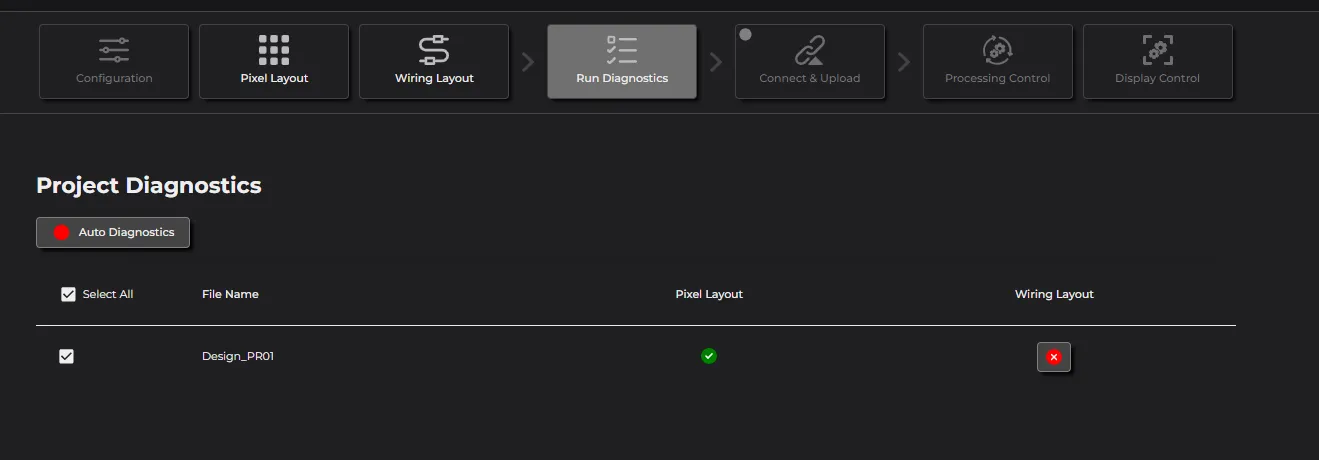 The “Connect & Upload” section will be enable once the diagnostics are successful. Click the “Auto Diagnostics” button in the “Run Diagnostics” section an resolve any issues that arise before continuing.
The processor doesn’t show up under the “Add processor” button
- Ensure that your computer is connected to the same network as the processor.
- If the processor is configured using a static IP address, configure your computer to use a static IP in the same subnet
- If the issue persists, restart your computer and try again.
Can’t select on tiles
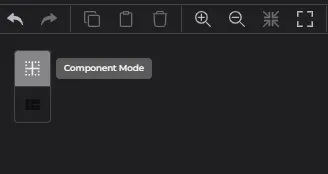
In the pixel layout, there are two selection modes: Component Selection and Zone Selection.
- Component Selection Mode
: Single and Multiple Selection: You can select one or multiple components. Zones: Zones are not selectable or editable in this mode.
-
Zone Selection Mode
Single Selection Only: Only one zone can be selected at a time. Zone Modification: You can move and resize the selected zone.
-
Solution
Check if you are in Zone Selection Mode, switch to Component Selection Mode instead.
Can’t create enough rows and columns in Quickbatch
Quickbatch command has a limit on generating rows and columns on the canvas. The maximum number of rows and columns depends on the pixel size of your selected component and the raster size you have defined.
To change the raster size, follow these steps:
- Deselect All:
Click on any empty space on the canvas to ensure nothing is selected.
- Access Canvas Properties:
On the right side, you will see the canvas property panel with options for Raster Size & Units.
- Select Resolution:
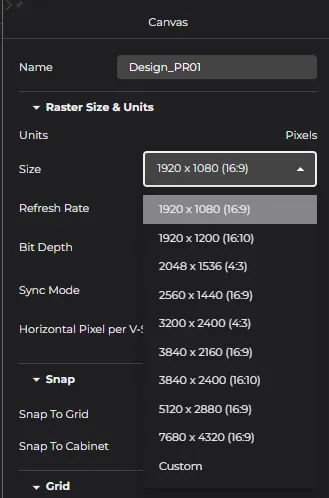 Choose the desired resolution from the dropdown list, or select ‘Custom’ to define a specific resolution. Click ‘Set’ to apply your changes.
- Check Quickbatch:
Click on Quickbatch to see if the new raster size meets your needs.
Zone & VStream Channel

In the pixel layout, you can create Zones by enabling the “Auto Zoning” option with the “Draw Cable” command.
Alternatively, you can create a zone manually by following these steps:
- Switch to Zone Selection mode.
- Run the “Create Zone” command from the toolbar.

A VStream Channel is a virtual component in the Wiring layout that can only be created from existing Zones in the pixel layout.
Here are the rules between VStream Channel and Zone:
- Each VStream Channel corresponds to a Zone with the same name in both layouts.
- The Zone list indicates if a Zone is used as a VStream Channel in the Wiring layout by showing a lock icon.
- A Zone can only be used as a VStream Channel once.
- When using the “Generate Logic Connection” command, a Zone without assigned tiles will not be generated as a VStream Channel.
However, you can manually create a VStream Channel by dragging and dropping from the Zone list to Wiring Layout.
How to Assign Tiles to Different Displays
Only zones can be assigned to a display. When a zone is assigned to a display, all the tiles within that zone will automatically be shown on the display.
- Modify the Number of Displays:
Go to the project settings. The default number of displays is 1. Change it to 2 (or the desired number).
-
Switch to Zone Select Mode: In the pixel layout section, switch to Zone Select Mode. Select a zone.
-
Assign Zones to Displays:
 In the property panel, click on the Display Selection list. You will now see two displays listed. Assign the zone to Display2 (or the desired display).
How to Change SubType for Tiles
- Select Tiles: In Pixel View, single-select or multi-select the tiles you want to modify.
- Choose SubType: In the property panel, choose a number between 0 and 255 for the SubType.
- Check SubTypes:
You can always turn on the “Show SubType” option to check the SubTypes of all tiles.
Tiles with the same component type but different configurations cannot have the same subtype. Run a diagnostic to check for any conflicts in the subtype settings.